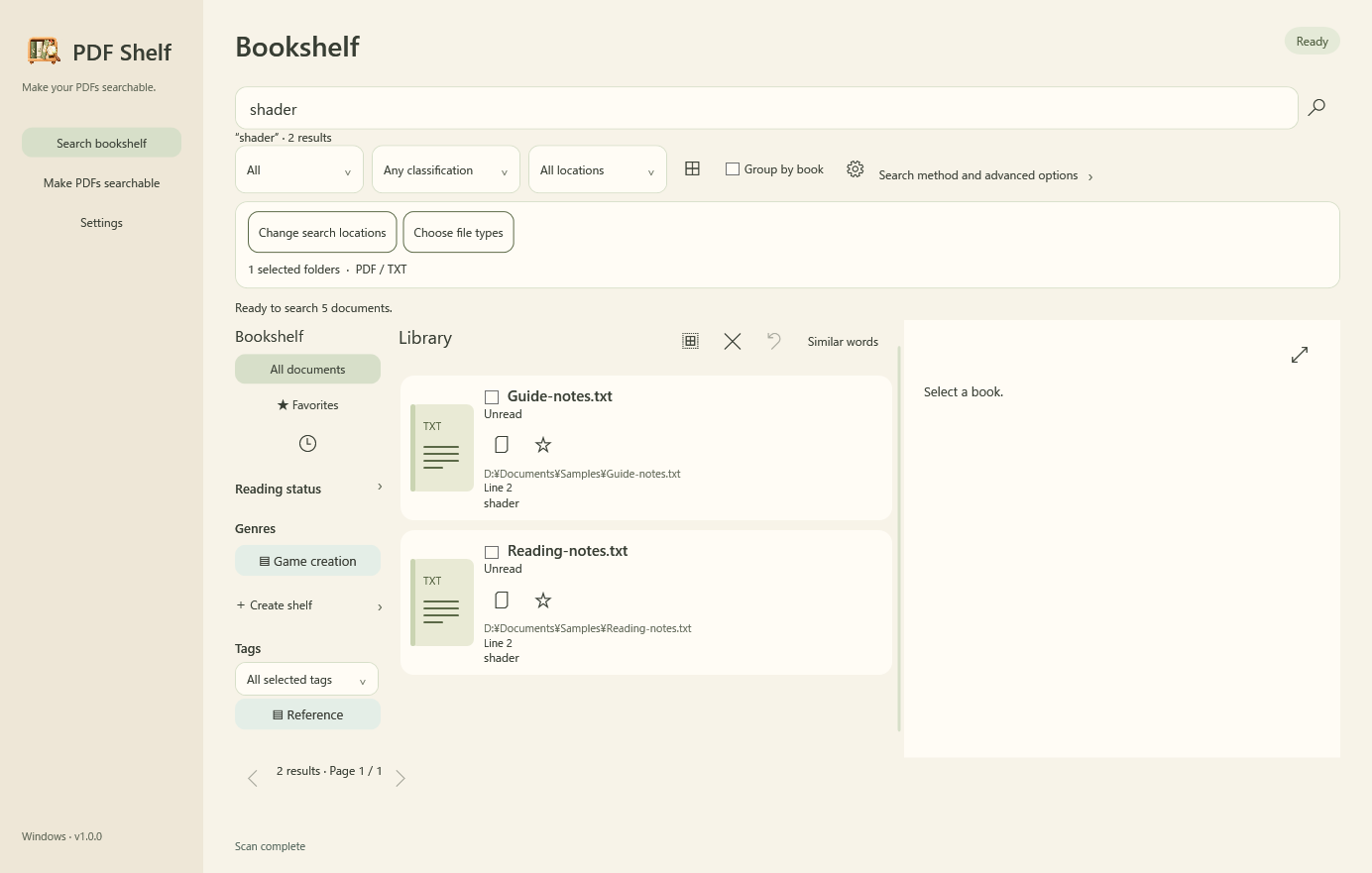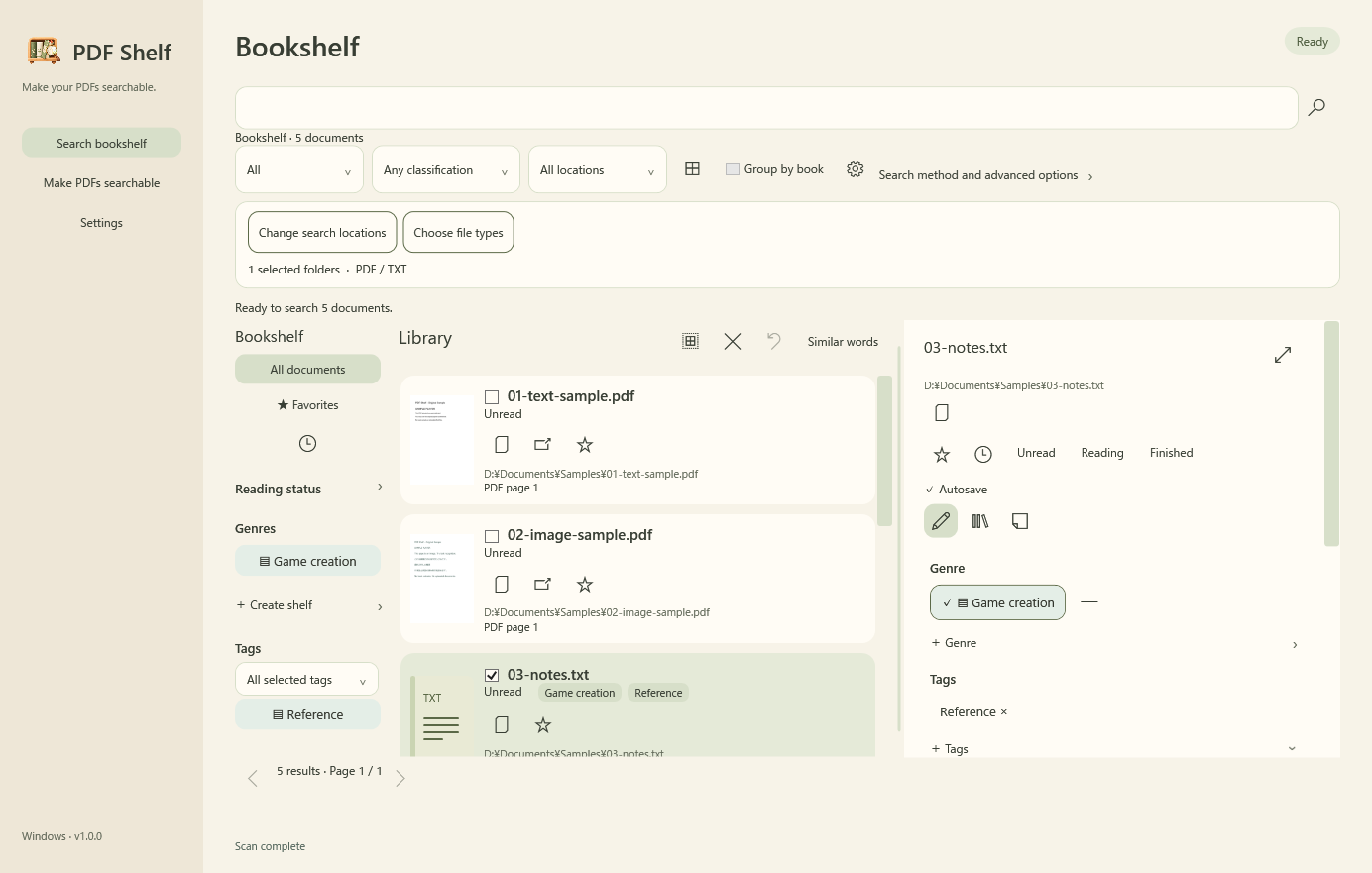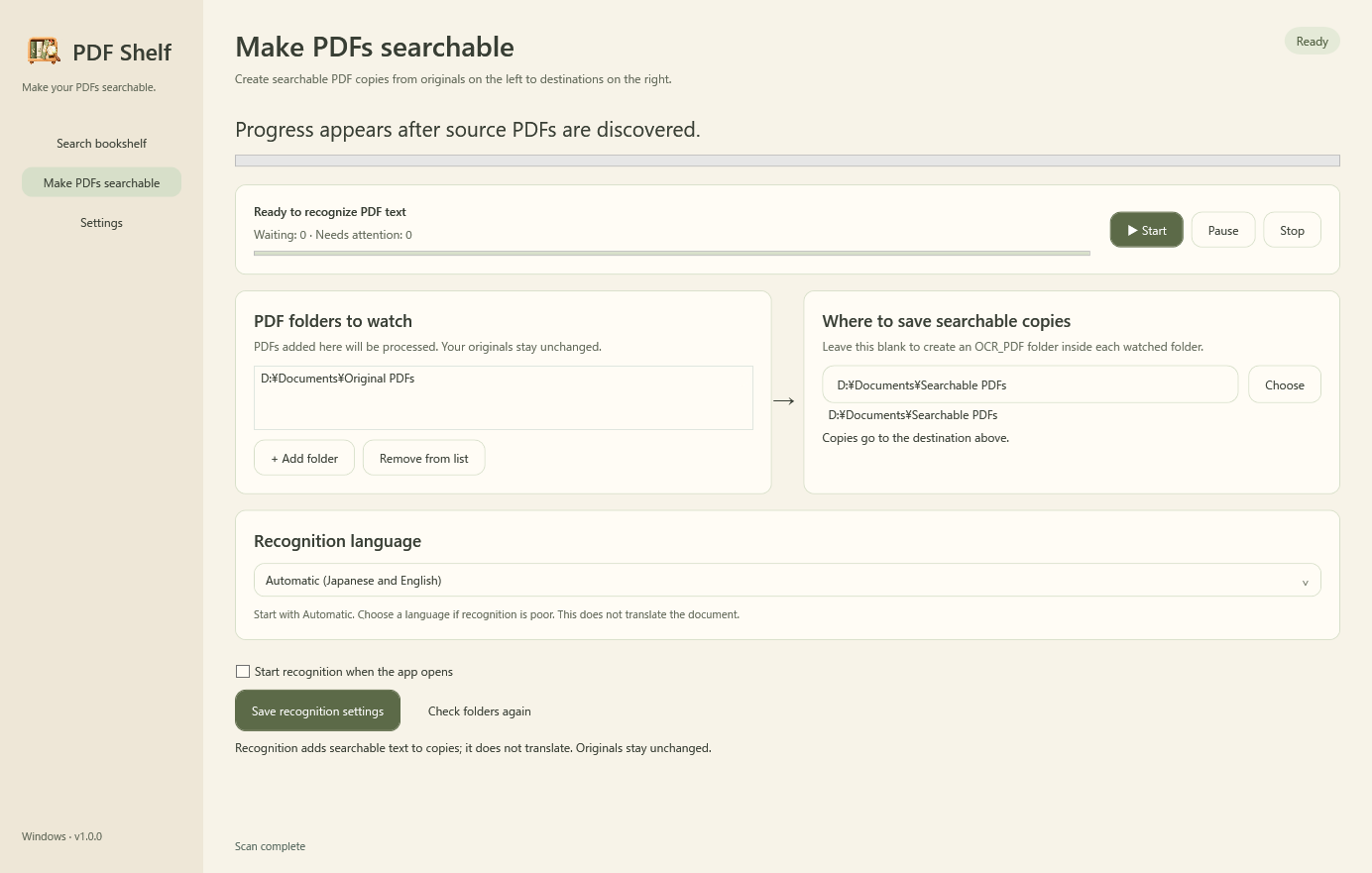
Find the passage. Keep reading. Searchable Shelf is available.
Searchable Shelf is available: a Windows 11, 64-bit app with every feature free. Find a passage even when you have forgotten the filename.
Search PDFs, text and supported Word, Excel and PowerPoint documents together. OCR makes scanned PDFs searchable by creating copies and leaving originals unchanged. Review matching passages inside the app.
Organize your library with genres, tags and favorites, then keep reading status, bookmarks and notes alongside your documents. Batch OCR and watching for additions are included, without purchase, expiry or per-start quotas.
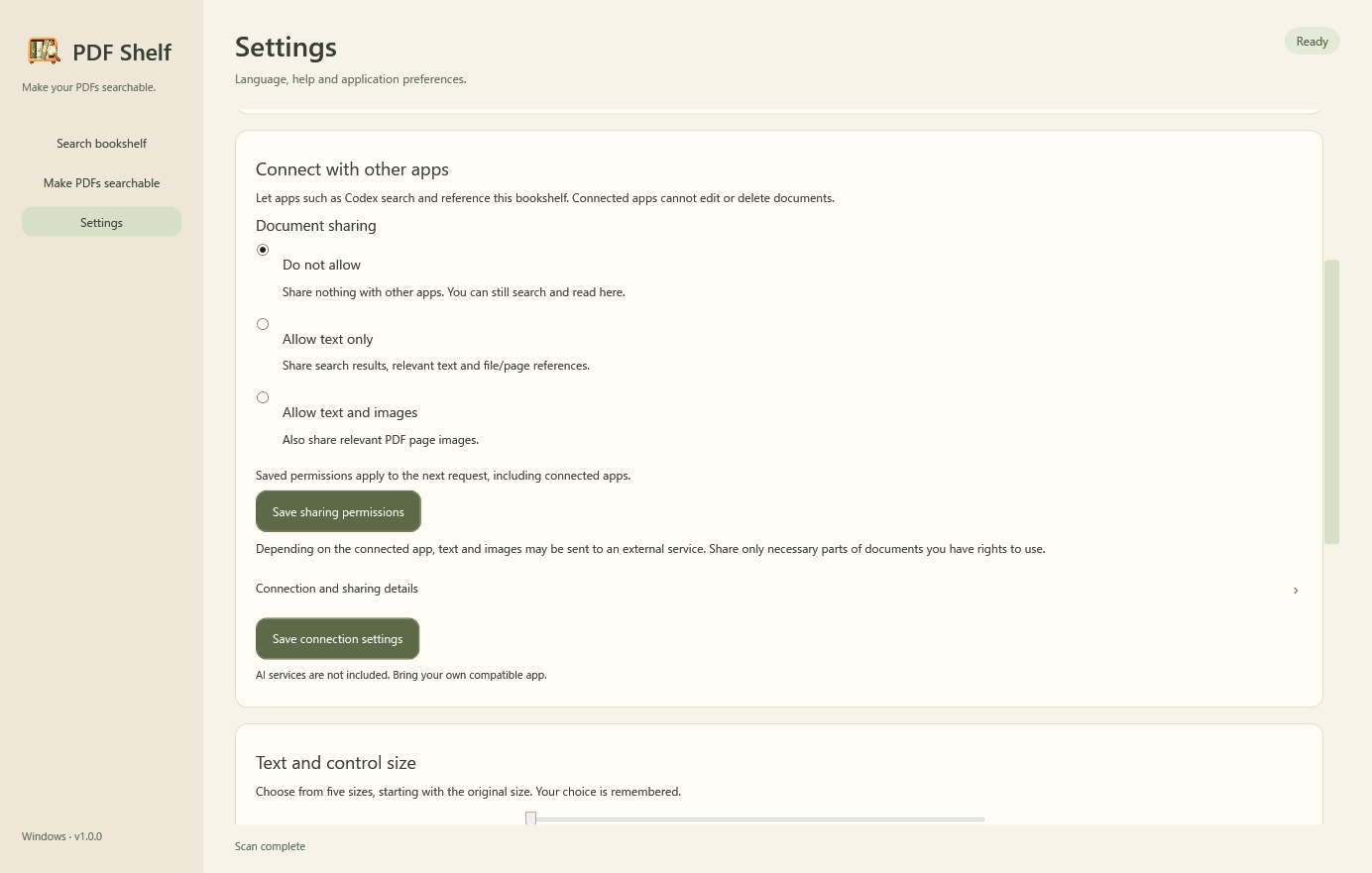
Search and OCR run locally. Optional MCP access lets compatible apps retrieve permitted excerpts or PDF pages. Sharing is off by default; connected apps may send permitted content to external services. No AI subscription is included.
Extract the ZIP and open PDFShelf-Setup.exe. Close the previous version before updating. OCR can make mistakes; the app does not translate documents or search by meaning. Check important passages against originals.
Version 1.0.0 is available free on BOOTH through the download button below. Financial support is not available yet; using the app and sharing feedback helps too.
Use local documents as a source for AI through MCP. Sharing starts disabled; choose deny, text, or text plus images. Switching to deny blocks future requests. Permitted requests do not prompt each time. Connected apps may transmit permitted content externally; AI services are separate.
Explore project